eGolfCard.com Help > My Scores
Adding Scores
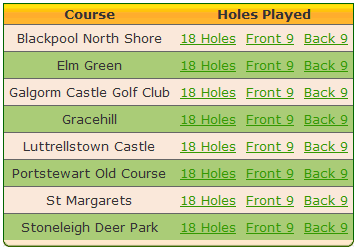
Adding a score is a two step process. Firstly, you must select the course that you
played at and whether you played a full 18 holes or the front nine or back nine.
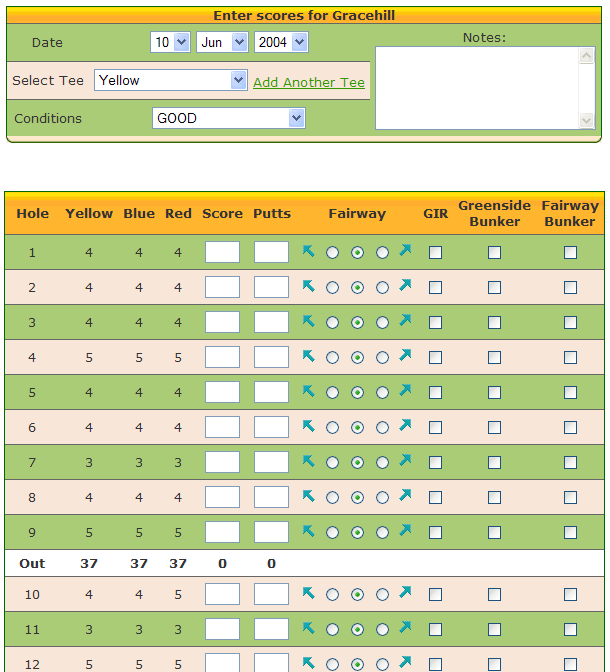
After selecting the course, enter the date and tee you played on, along with
the conditions for the day and some notes about the round (premium members).
Next enter your scores - hole score, number of putts and fairway (direction off tee). Greens in Regulation (GIR) will be calculated automatically. Also click the boxes depending on whether you were in a fairway or greenside bunker during the hole.
Next enter your scores - hole score, number of putts and fairway (direction off tee). Greens in Regulation (GIR) will be calculated automatically. Also click the boxes depending on whether you were in a fairway or greenside bunker during the hole.
Viewing Scores
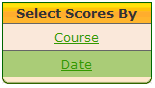
Viewing a score is a three step process allowing you to search for a score by course name or date.
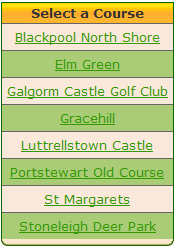
If you have selected to search by course you will be presented with your My Courses list.
Select the course you played.
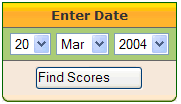
If you chose to search by date, enter the date and click Find Scores.
If you chose to search by date, enter the date and click Find Scores.
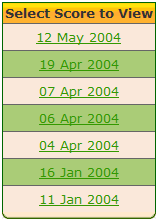

Depending on the search method selected, above, you will now be presented with either a
list of dates on which you played a course or a list of courses you played on your
specified date. Click either the date or course to view the score.
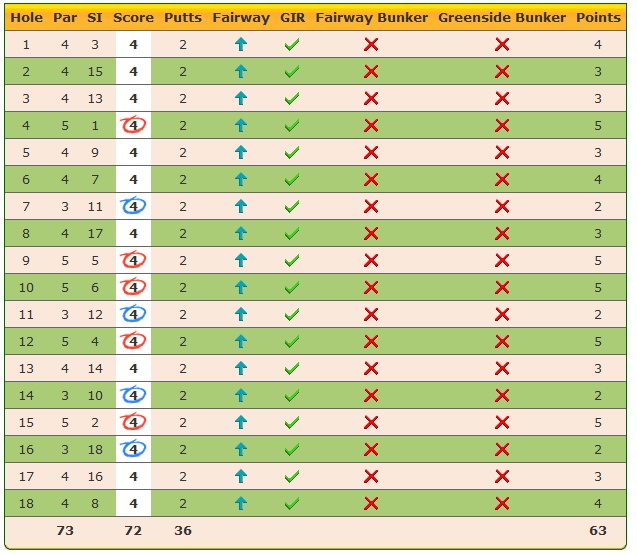
You will then see a copy of the scores you entered. Note, that the points column showing
stableford scores is only available to eGolfCard.com premium members.
Modifying Scores
The process for modifying a score is a combination of the adding and viewing scores method.
Search for the appropriate score, as with viewing a score. Once you have found the score
you require, you will be presented with an input form, as with adding a score, which
can be altered as required.