eGolfCard.com Help > My Courses
My Courses
In order to add scores to eGolfCard.com you must nominate one or more courses to be
in your My Courses list (limited to 3 courses for non-Premium members). Once you have added
courses to your list, you can then add scores for them.
Modifying My Courses
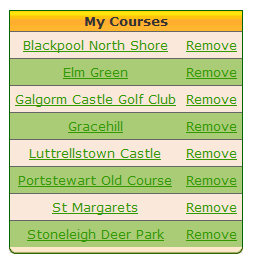
In the Add/Remove section of My Courses you can modify your list of courses. To remove
a course just click the Remove link beside it. To add another course to your list
click the Add Course to My Courses link.
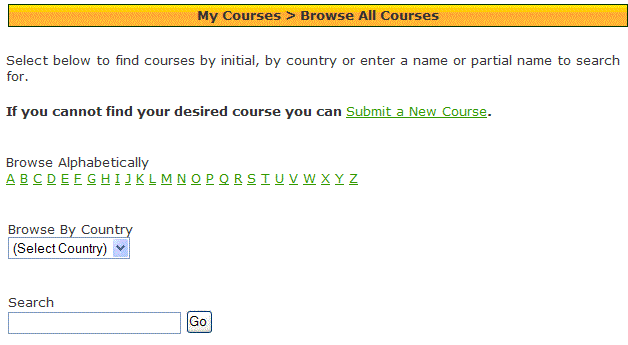
To add a course you can search through our current database for the course you require.
To add a course you can search through our current database for the course you require.
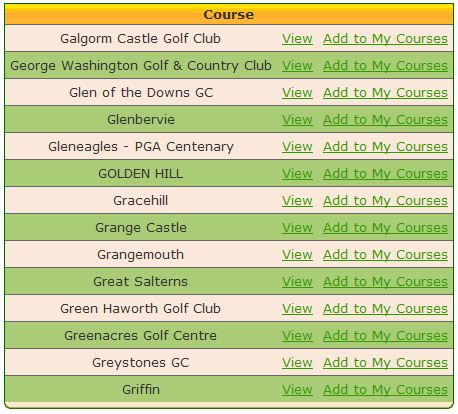
If the course you play is found by the search you can simply add it by clicking the Add to My Courses link.
However, if the course is not present in the database, you will have to add it by clicking the Submit a New Course link.
However, if the course is not present in the database, you will have to add it by clicking the Submit a New Course link.
Submitting New Courses

The first step is to enter the course name you wish to add. The name you enter will be
checked against our database to see if any similar course names already exists and you
will be offered the option to add any of the results.
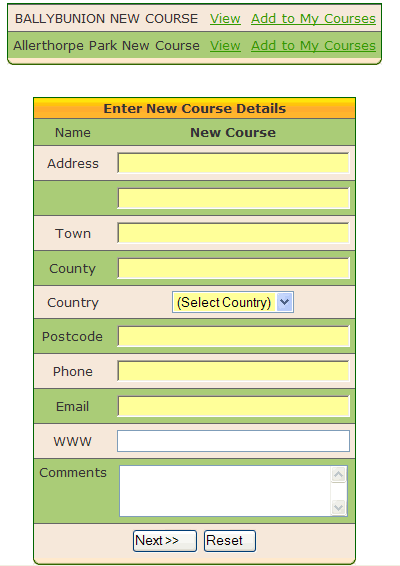
Next you need to enter details of the course. You are not required to enter all the contact
information, only what is available.
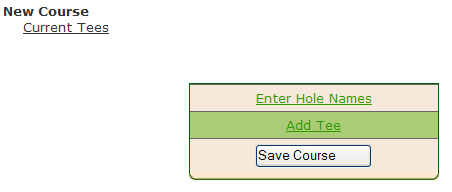
Next you will need to add tee details for the course. You can optionally enter hole names if
there are any. Note that you will not be able to proceed with saving the course if you
have not entered any tees.
Printing Scorecards
Before you go out to play a round you should print out an eGolfCard.com scorecard. The
scorecard provides you with space to record all the information needed to analyse your game.
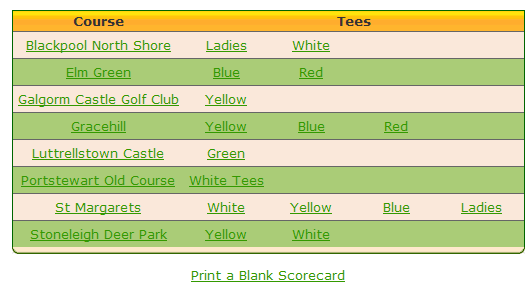
Select the course and tee that you are going to play from your My Courses list. You can also
print out a blank scorecard with no course information on it.